Google Business Profile for the holidays: special hours, posts and offers
Google Business Profile for 11.11, Black Friday and December: special hours, posts, photos, products, answers to questions and review requests.
November and December are when customers search Google for open stores, last-minute services and deals. If your listing shows regular hours and you close early over the holidays, you get bad reviews and wasted visits. And if you don’t show your offer, the customer will choose the company that did.
In this guide I show how to prepare your Google Business Profile for 11.11, Black Friday and December: special hours, posts, photos, products, questions and reviews. I describe each step for a computer and for a phone. Button names are given as they appear in the Polish interface, with the English equivalent in parentheses.
Calendar: what falls when, and when to act
In 2026, 11.11 falls on a Wednesday, Black Friday is on 27 November, and after that comes the pre-Christmas period and the December holidays. For many local businesses this is also a time of increased traffic: gifts, renovations before the holidays, last-minute services.
I suggest this plan:
- By the end of October: check the basic details (phone, address, categories, regular hours).
- At the beginning of November: set special hours for the whole period until the end of the year.
- A week before the promotion: add new photos and prepare posts.
- During the campaign: answer questions and reviews.
- After the season: ask customers for reviews.
Step 1: special hours
Special hours are a separate setting for selected days that doesn’t disturb your regular hours. After the holiday, the profile returns to the normal schedule on its own.
On a computer
- Log in to the Google account that manages the listing.
- Type your business name into Google to see the profile management panel.
- Choose Edytuj profil (Edit profile), then the Godziny (Hours) tab.
- Next to Niestandardowe godziny otwarcia (Special hours), click the edit icon, then Dodaj datę (Add date).
- Set the opening hours or mark that the business is closed that day.
- Save the changes.
On a phone
- Open the Google Maps app and go to your business profile.
- Choose Edytuj profil (Edit profile) and the working hours section.
- Add special hours for selected dates and save.
Button names may differ slightly depending on the version of the panel, so look for the option “Niestandardowe godziny otwarcia” (Special hours).
Which days to set
- 11 November (Wednesday, Independence Day): a statutory day off with a trading ban in stores, so set “Zamknięte” (Closed) or the hours when you actually operate,
- 27 November (Black Friday), if you extend your hours,
- holiday days in December, including Christmas Eve and the second day of Christmas (26 December),
- 31 December and 1 January.
The easiest way is to write the list of days on a piece of paper and only then enter them in the panel. That way nothing slips through.
Step 2: posts in your Business Profile
Posts appear in your listing, below the photos and contact details. Google’s Business Profile Help describes several types of updates, and in 2026 the ones available should mainly be:
| Post type | What it is for | Example |
|---|---|---|
| Update | News, a change of hours, something new | “We are closed on 24–26 December” |
| Offer | A promotion with an end date | “Black Friday: 15% off installation until 30 November” |
| Event | A campaign on a specific date | “Open day on 28 November, 10:00–16:00” |
Before publishing, check in your panel whether all three types are available for your business, because Google changes this set.
How to add a post
- On a computer: in the profile choose Wpisy (Posts), then Dodaj wpis (Add post) (in the app, a similar option is in the updates tab).
- Choose the post type.
- Add a photo, a short text and a button, for example Zadzwoń (Call) or Dowiedz się więcej (Learn more).
- For an offer, set the start and end dates.
- Publish.
Ready-made texts to copy
Update about hours:
Holidays at our company: on 23 December we work until 18:00, on 24–26 December we are closed, and from 27 December we are back to regular hours. Call if you need an appointment before the holidays.
Black Friday offer:
Black Friday until Sunday: 10% off selected services when you order by 29 November. Details and promotion terms on our website. Call or write to us.
Event:
Open day at our showroom, 28 November, 10:00–16:00. We will show new models, advise on your choice and quote your project on the spot.
Be specific: what, until when, how to get in touch. Don’t put prices in a post that you can’t honor, and don’t promise “the lowest prices in town” unless you can prove it. It’s also good to have the promotion details on your website, so that the button in the post leads to a specific subpage.
How long a post stays visible
Offers and events disappear after the end date. Updates are usually visible for several months, but it’s worth refreshing them after the season. Before the New Year, add a post “Thank you, and see you in January” so that the listing doesn’t look forgotten.
Step 3: photos for the season
Photos are the first thing a customer sees in a listing. In winter and before the holidays, up-to-date photos say: the business is active.
- add a photo of the entrance or signboard in winter scenery, so that the customer can find you easily,
- show projects from recent weeks,
- if you decorate the premises, add a photo of the interior,
- remove or replace photos that show an outdated offer.
You add them in the panel, in the Zdjęcia (Photos) section, or in the Google Maps app. Photos should be sharp, in JPG or PNG format. Don’t add graphics with only text and a logo, because Google doesn’t like it when photos replace a description. Photos taken with a phone in natural light are usually enough.
Step 4: products and services
If your category allows it, you can add a Produkty (Products) section to the profile or complete the list of services with a short description. In season, this is a good place for holiday packages, gift vouchers and last-minute services.
Each product or service consists of:
- a name (plain language, no ALL CAPS),
- a photo,
- a short description,
- a “from” price or the note “individual quote”.
Not every industry has access to the products section, so if you don’t see it in the panel, complete the services and the business description.
Step 5: questions and answers
In season, customers ask the same things: do you have free appointments, until when do you work, can an order be picked up on Christmas Eve. Google is phasing out the questions and answers section, and in many profiles it’s already gone. Put the answers to seasonal questions in a post, in the business description and in the FAQ on your website.
Example:
Do you work on Christmas Eve? No, Christmas Eve is a day off. We accept orders for in-store pickup until 23 December.
Check this section once a week and answer new questions. No answer is a signal to the customer that the business is inactive.
Step 6: reviews without rewards
After the season you have the most satisfied customers, so it’s a good moment to ask for a review. Important: don’t offer a discount, a freebie or a prize draw for a review. Google’s policies prohibit such incentives, and reviews obtained this way may be removed. Give holiday promotions regardless of whether the customer leaves a review.
Ask all customers, not only those who looked satisfied. Google’s policies prohibit selective review gathering. I described the review link, ready-made SMS and email messages and the way to respond in the guide on how to get Google reviews.
A short SMS after a purchase:
Hello, thank you for your pre-holiday shopping. If you like, leave us a short review on Google: [link]. Happy holidays!
Step 7: check how you compare with the competition
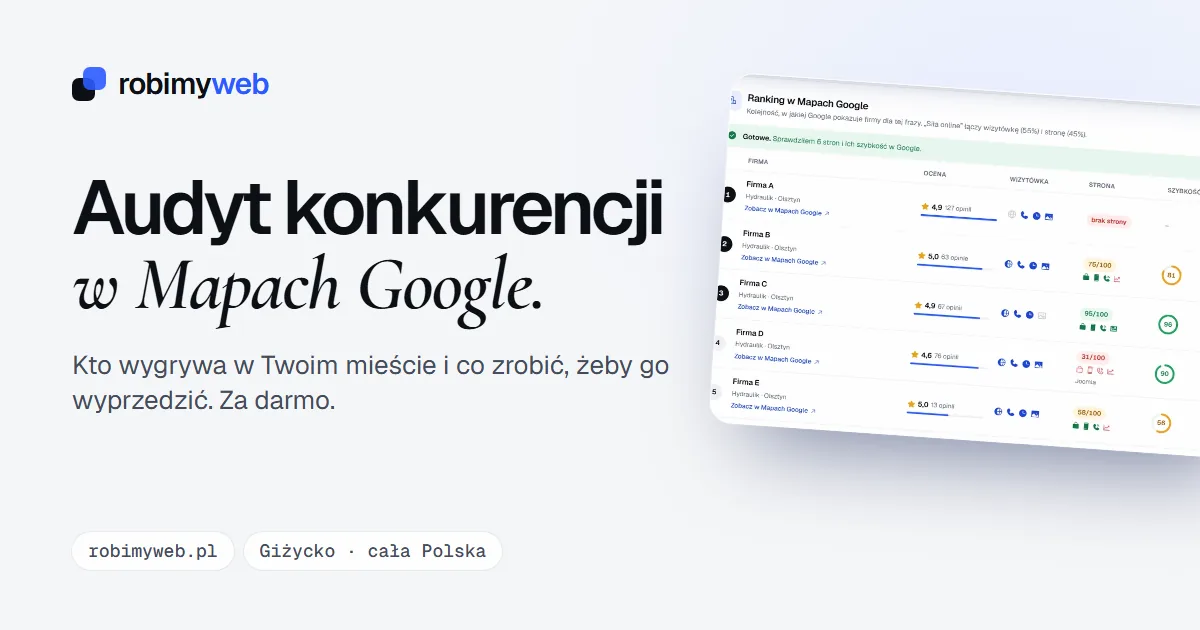
Before you start making changes, see what the businesses around you are doing. In my free competitor audit in Google Maps you enter a service and a city, and after about a minute you see the ranking, ratings, the number of reviews against the median and how complete the listings are. That tells you whether you lack photos, reviews or a description, and what to fix first.
Checklist before the season
- regular hours, phone and address are up to date,
- special hours are set for 11.11, 27 November and the holiday days,
- a post about hours and a post with an offer have been added,
- there are fresh photos in the profile,
- services or products are filled in,
- all reviews have replies,
- I send review requests without rewards.
Summary
A listing that shows real hours, up-to-date photos and a specific offer over the holidays attracts customers who are looking for you here and now. A few hours of work and a good plan for November and December are enough.
If you prefer that I take care of this for you, I will complete and optimize your Google Business Profile and prepare the posts for the season. Write to me and I will reply within 24 hours.
Frequently asked questions
You don’t have to, but it’s worth it. A customer who sees hours in Google that match reality doesn’t call to ask whether the business is open. If you work normally, you can simply leave the regular hours and check that they are up to date.
No. A post is a short teaser, while the details, price and terms should be on your website. It’s good if the post button leads to a specific subpage, not to the home page.
No. Google’s policies prohibit offering incentives for reviews, including during promotions. You can ask every customer for a review, politely and without conditions, and give discounts on purchases regardless of the review.
Right away, because some changes, for example new photos or categories, may be reviewed by Google. You set special hours in advance, so do it several weeks ahead, and publish posts just before the promotion.
Log in to the account that manages the profile and correct the hours right away. Also check whether someone suggested a change in Maps, because such suggestions appear in the panel and can be rejected. For the future, set a reminder before every long weekend.
Related services
Have a similar project?
Describe what you need and I’ll send a quote within 24 hours. New clients get 20% off their first project.